



Table of contents
- Resetting a User Password
- Sending Password Reset Emails
- Recommended Password Practices
- Administrator Account Security
This guide explains how to manage passwords, login access, and account security inside the website CMS.
Resetting a User Password #
If a user forgets their password:
- Navigate to: Users → All Users

- Open the user profile: Click Edit
- Scroll down and Click: Set New Password or Send Password Reset Email link
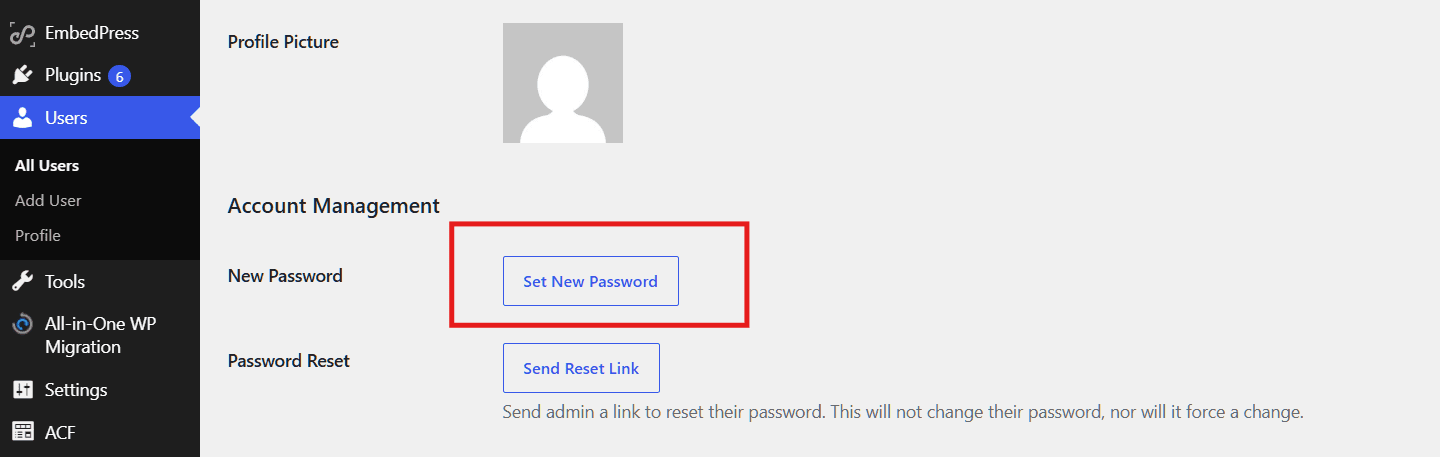
- Save changes
Sending Password Reset Emails #
Users can reset their own password from the login page.
To do this:
- Open the login page
- Click:
Lost your password?
- Enter the account email address
- Follow the instructions sent by email
Recommended Password Practices #
For security purposes:
- Use strong passwords
- Avoid reusing passwords
- Do not share login credentials
- Update passwords regularly
Recommended passwords should contain:
| Requirement | Example |
|---|---|
| Uppercase letters | A, B, C |
| Lowercase letters | a, b, c |
| Numbers | 1, 2, 3 |
| Special characters | ! @ # $ |
Administrator Account Security #
Administrator accounts have full website access.
Please:
- Limit administrator access
- Remove inactive admin accounts
- Verify admin permissions regularly
- Reset compromised passwords immediately